Showing posts with label Android. Show all posts

Tuesday, November 6, 2012

How to unlock Samsung Galaxy Ace (for free) from a network

My phone was locked to 3 network here in UK and I badly needed to unlock it because my other phone got damaged and couldn't afford to get a new phone. You can get an unlock code from your service provider by making a payment of £15 (when writing this blog), in UK. I would rather spent my money on beer than on phone unlock codes. Any how, I got a solution for this and here I am sharing it with you.

This method is recommended for Samsung Galaxy Ace (GT-S5830) only and when I did this my phone was running on Gingerbread version 2.3.6. However, the developer claims it may work in the following models too.

  • Samsung 5 Europe (i5500)
  • Samsung 551 Callisto (i5510)
  • Samsung (i5700)
  • Samsung 3 (i5800)
  • Samsung Pro (i5510)
  • Samsung Galaxy mini (S5570)
  • Samsung Fit (S5670)
  • Samsung Ace (S5830)
  • Samsung Pro (B7510)

I would also add, that the paid method is definitely risk free and safer than this method.

Before proceeding check your phone lock status by dialing *#7465625#. The Network Lock should be [ON] now.

First you need to root your galaxy ace. Procedure for rooting the android device can be found in my previous post.

Edit

Secondly, you MUST install BusyBox and run it once. Running BusyBox will ask for super user permission, grant it. Otherwise unlock codes won't be visible. This step is important, else chances are you will get 'or or or' problem, as mentioned by many commenters. Thanks much to Asok, Ratty and Daniel Hamblett (commenters) for notifying this.

Once you have BusyBox ready with root access, download and install Galaxy Ace Unlock by Helroz

https://play.google.com/store/apps/details?id=com.helroz.galaxyaceunlock

This app can be run only on a rooted device. There are only 3 steps to get your phone unlock code

Getting the unlock key

  1. Run the app
  2. Touch on the option given. Unlock. See your sim unlock code
  3. Confirm your choice by selecting Yes on the next screen.
  4. Wait till the app shows the unlock codes.

The app extracts the network unlock code from the phone and shows it for you. It may give upto 4 different unlock codes. In my case all the four unlock codes were same. Note down the unlock codes.

Once you have the unlock codes, switch off your phone and boot it with an unsupported sim card.

When the phone boots it will ask for the unlock code.

Key in the unlock code. Do not try the same unlock code more than once. Any one of the unlock code will have worked.

If the unlock is successful it will display this message. Network unlock successful

Now if you dial *#7465625#, the Network Lock will be [OFF].

That confirms you have successfully unlocked your phone from the network.

Here is a video for those who are too lazy to read... :P

Monday, November 5, 2012

How to root your Samsung Galaxy Ace

Rooting an Android device allows the access to root user in the operating system. I needed to get root access in order to unlock my phone from the network. It is pretty simple procedure and I followed the instructions given at androidforums. While rooting, my device was running Gingerbread 2.3.6

Step by step instructions for rooting the device is clearly given in the Android forum post by victors1995. My device had no issues after rooting. You will see a new launcher called super user in your software list, which can be used to grant or revoke super user capabilities to other apps. I went ahead and installed Busybox free and Root checker basic.

After rooting I also unlocked my phone from the network.

NB: Do this at your own risk. Rooting may void the warranty of your device.

If it helped share it with your friends. Feel free to comment about your experience.

Here is an instructional video on how to do this

Wednesday, March 7, 2012

How to take screenshot of Android device (developer edition)

Older versions of Andriod doesn't give a simple option to take screen shot directly from the device. Apple's iPhone has a handy feature which allows to take screen shots by pressing Power+Home button. From Android 2.2 (Froyo) onwards Android devices gives and option to take screenshot from the device itself by using Home + Power button combo. This post is android developers method for getting screen shot from Android devices.

It took some time and searches to figure out how to take screen shots from Android device. You need to have a android development kit installed and configured to take screen shots using the official method.

It was easy for me once I figured out the method, as I had already installed android-sdk in my machine. I am using SpringSource Tool Suite with ADT plugin for development which is a Spring flavoured Eclipse. If you already have them installed great otherwise you might want to get these installed in your machine. Download and installation instructions can be found in the following links
By optional I mean, Eclipse and ADT is not required for taking the screen shot, which is the purpose of this blog post

Once you have it ready follow these steps
  1. Enable USB debugging in the android device, by going to Settings > Applications > Development > and checking the check box that says USB debugging.

  2. Connect your Android device to your machine

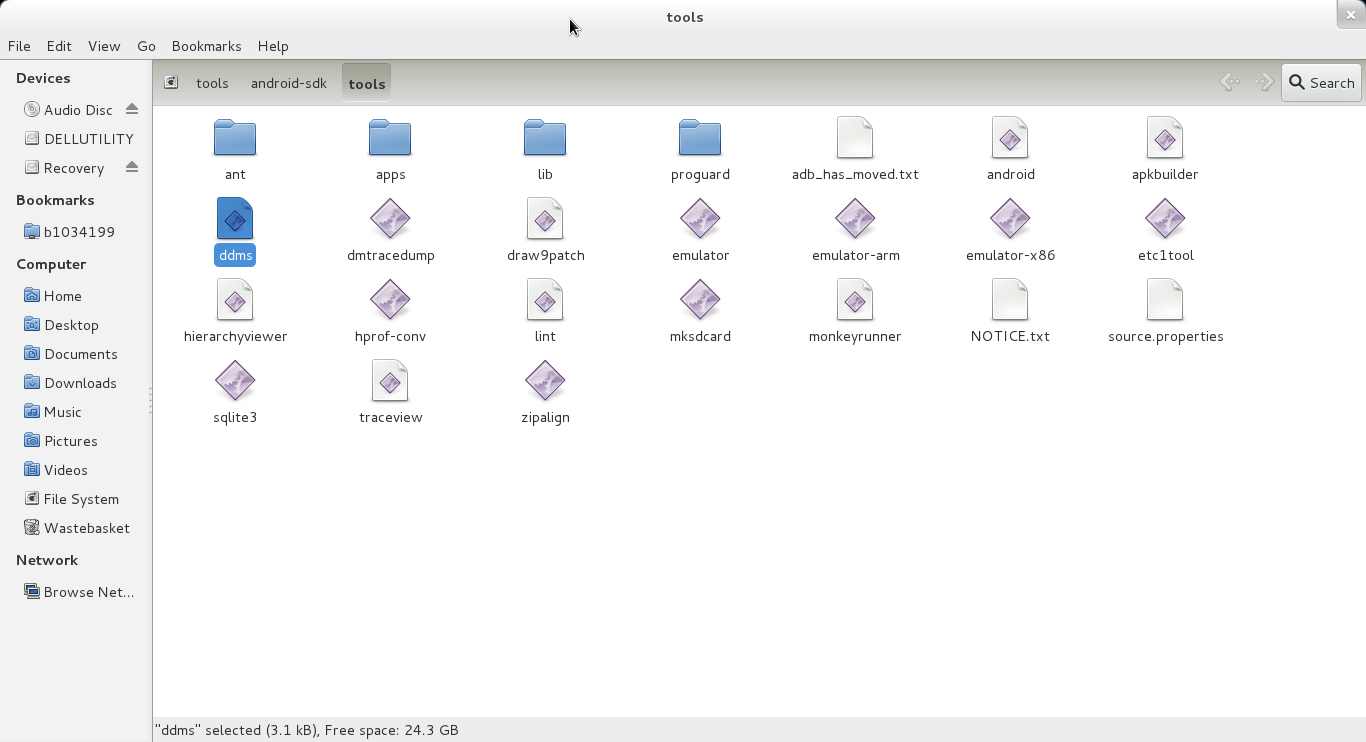
  3. Start ddms(Dalvik Debug Monitor Server) either from Android-SDK/tools folder or from Eclipse


  4. That will open ddms screen like this


  5. Here your will be able to see the device that you have connected. You can ignore the messages and warnings that are continuously updated at the bottom.

  6. Click on the camera icon or screen capture option under the Device menu


  7. Now you will get the Device Screen Capture window.


  8. You can directly save the screen shot from this. Go to a different screen or application and click 'refresh' option to get a updated screenshot. It also gives rotate and copy to clipboard options. Click done to close the window.

The images are saved in PNG format and are small in size. I have tried screenshots of Youtube videos being played and it worked very well.
Related Posts Plugin for WordPress, Blogger...